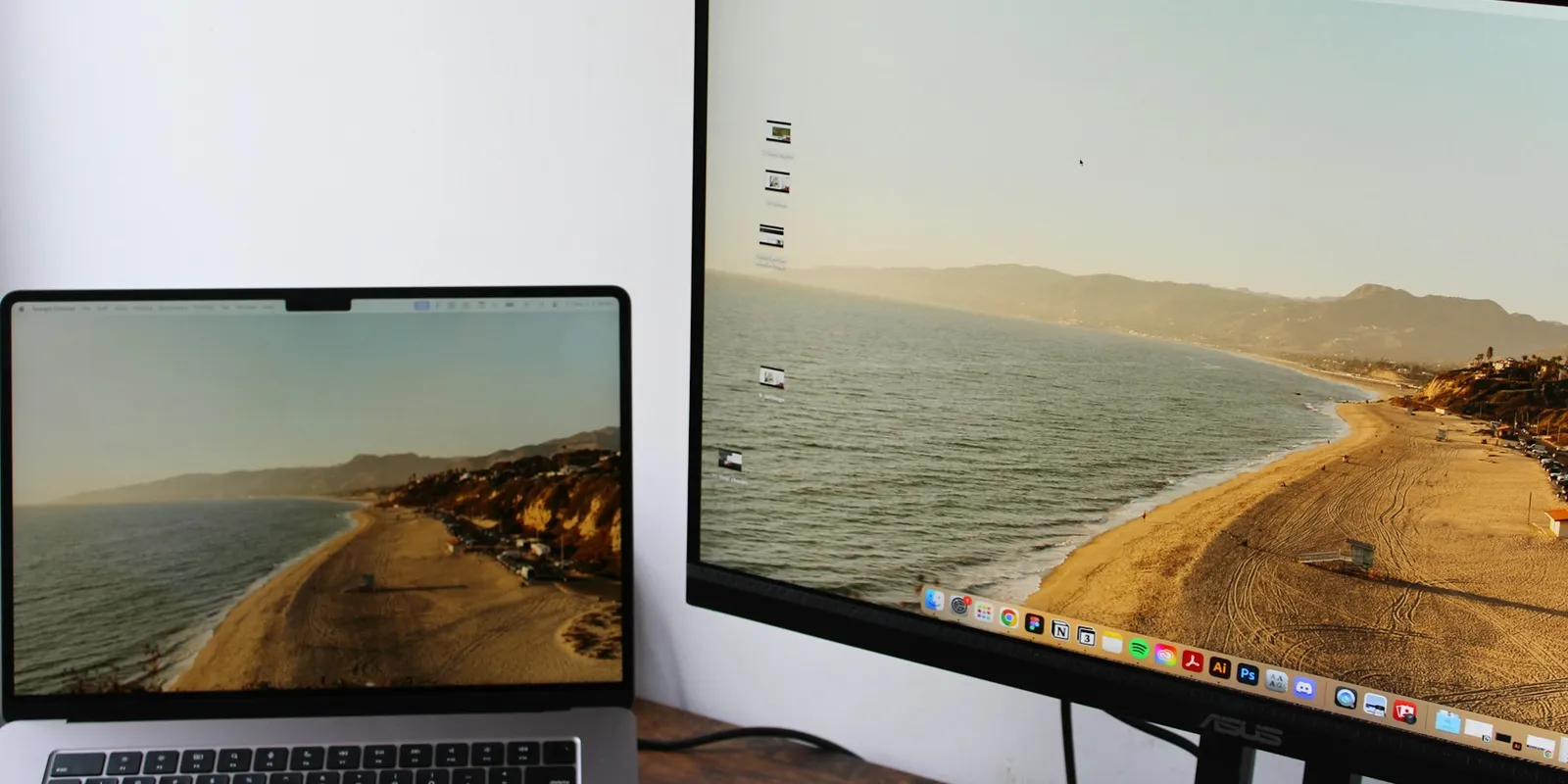
The 14-inch MacBook Pro has a sharper and brighter screen than most portable monitors, which makes adding a second screen harder than it sounds. Apple lists a 14.2-inch Liquid Retina XDR display with 3024 by 1964 resolution at 254 pixels per inch, wide color (P3), and ProMotion refresh rates up to 120Hz. Most portable monitors are 1080p panels with a narrower color range, and next to the MacBook’s screen the gap is easy to see.
This guide compares five portable monitors against the MacBook Pro 14’s own display and body size. We look at sharpness, color, how each one connects and draws power, and whether it fits in a bag sized for a 14-inch laptop. Every pick has a Viewing Score and a plain note on who should skip it.
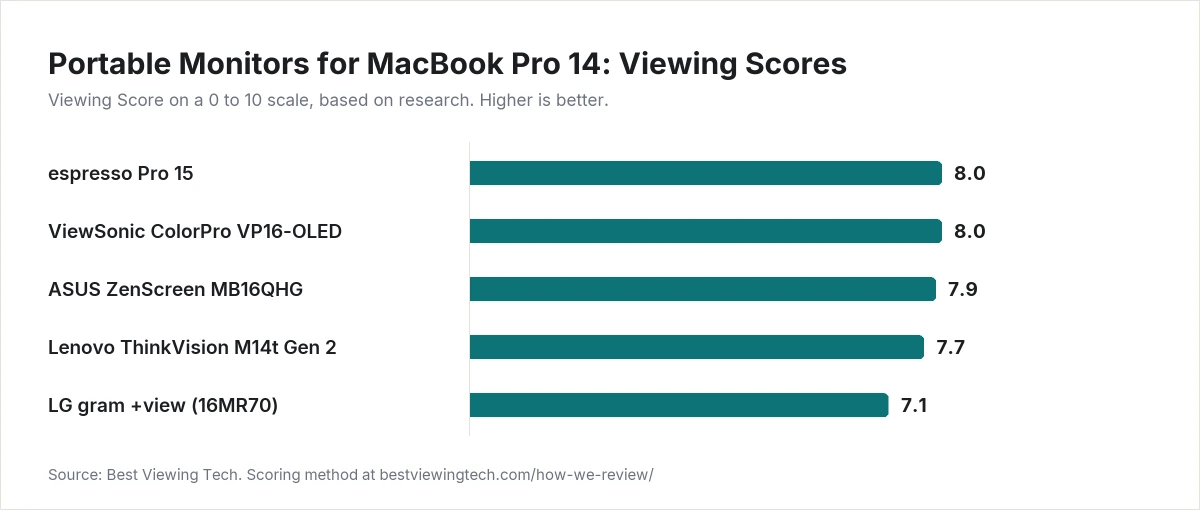
Our Picks at a Glance
| Pick | Best for | Screen | Viewing Score |
|---|---|---|---|
| espresso Pro 15 | Sharpness closest to the MacBook’s screen | 15.6-inch 4K | 8.0 |
| ViewSonic ColorPro VP16-OLED | Contrast and color work | 15.6-inch 1080p OLED | 8.0 |
| ASUS ZenScreen MB16QHG | Matching 120Hz and P3 color | 16-inch 2560 x 1600 | 7.9 |
| Lenovo ThinkVision M14t Gen 2 | Size match and travel | 14-inch 2240 x 1400 | 7.7 |
| LG gram +view (16MR70) | Lightest 16-inch option | 16-inch 2560 x 1600 | 7.1 |
How We Picked
We did not set up these monitors next to a MacBook Pro ourselves. Each Viewing Score comes from research: manufacturer spec sheets, Apple’s published specifications, and independent published reviews. Every product is scored on the same five criteria we use across the site:
- Picture quality (35%): resolution and pixel density, color gamut, brightness, refresh rate, and panel type.
- Value (20%): what you get for the money compared with the rest of this list.
- Features and connectivity (20%): ports, power pass-through, stand adjustment, and Mac software support.
- Reliability and owner feedback (15%): findings from independent reviews and the brand’s support record.
- Design and build (10%): weight, thickness, materials, and how well it travels with a 14-inch laptop.
The full method is on our How We Review page.
What the MacBook Pro 14 needs from a second screen
- A single USB-C cable. The MacBook Pro’s Thunderbolt ports carry DisplayPort video, and all five monitors here accept video over USB-C. You do not need an adapter.
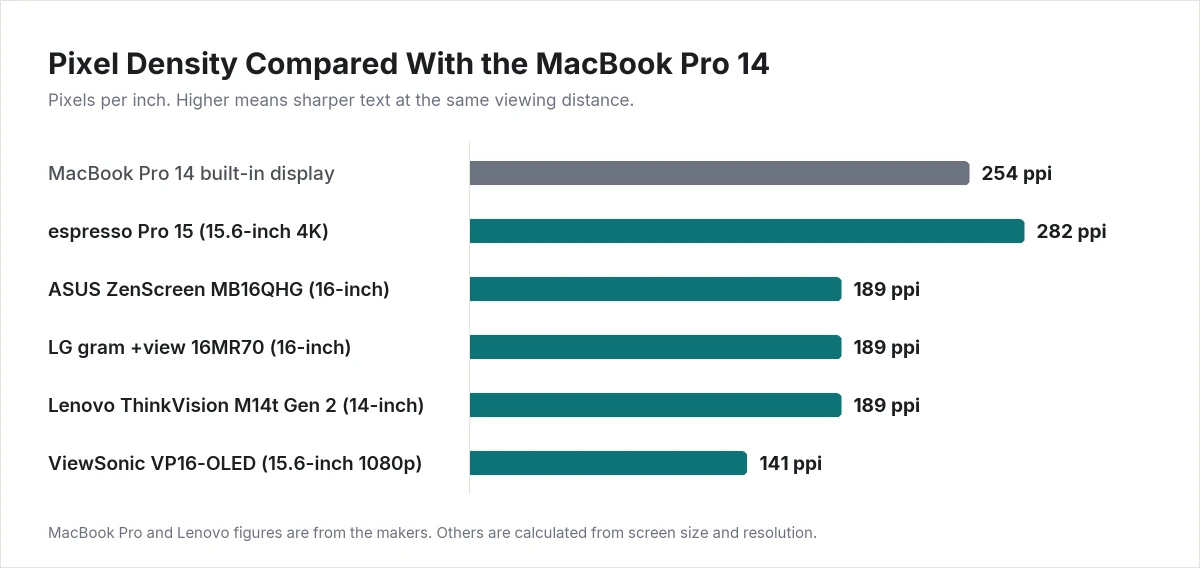
- Enough pixels. At 254 pixels per inch, the MacBook’s screen is far sharper than a typical 15.6-inch 1080p portable monitor, which works out to about 141 pixels per inch.
- Wide color. The MacBook’s display covers the P3 color range. A monitor limited to sRGB will look less saturated beside it.
- A matching shape. The MacBook’s screen is close to 16:10. A 16:10 monitor lines up with it better than a 16:9 one.
espresso Pro 15: Sharpest Match for the MacBook’s Screen
Viewing Score: 8.0
The espresso Pro 15 is the only monitor on this list with more pixels than the MacBook Pro 14 itself. espresso lists a 15.6-inch touchscreen at 3840 by 2160, which works out to about 282 pixels per inch, with 550 nits of brightness and 100% Adobe RGB coverage. The refresh rate is 60Hz.
It is also the pick with the most Mac-specific software. espresso’s free espressoFlow app adds touch gestures on macOS, auto-rotate, and window snapping. The display is built from anodized aluminum and glass, measures 0.35 inches thick, and weighs 1.76 lb without its stand. The magnetic Stand+ is included in the box. A case is sold separately.
Pros
- 4K resolution, the sharpest panel here
- 550 nits, the highest listed brightness on this list
- Touch support on macOS through espresso’s own app
- Two USB-C ports with power pass-through
- Stand included
Cons
- 60Hz, so it will not match the MacBook’s 120Hz ProMotion scrolling
- 16:9 shape, slightly shorter than the MacBook’s screen
- At 14.17 inches wide, it is almost 2 inches wider than the MacBook Pro 14
- Touch on Mac depends on espresso’s software staying up to date with macOS
- Protective case costs extra
Who should skip it: Anyone who wants smooth 120Hz motion on both screens should look at the ASUS ZenScreen MB16QHG. If you carry a bag sized for a 14-inch laptop, the Lenovo ThinkVision M14t Gen 2 is a better fit.
ViewSonic ColorPro VP16-OLED: Best for Contrast and Color Work
Viewing Score: 8.0
The VP16-OLED is the only OLED panel on this list. Each pixel produces its own light, so black areas are fully dark, something the LCD picks cannot match. ViewSonic lists a 15.6-inch 1920 by 1080 panel at 60Hz with 400 nits of brightness and Pantone Validated factory calibration.
In PCWorld’s review, the panel covered the full sRGB and DCI-P3 color ranges and 97% of Adobe RGB, and the monitor earned an Editors’ Choice award. That makes it a strong partner for photo and video work on a MacBook Pro.
The stand is more flexible than a basic kickstand. It folds out to raise the screen, and it has a tripod mount. ViewSonic also includes a hood to cut glare on the glossy screen. There are two USB-C ports rated at 40W each, plus micro HDMI.
Pros
- OLED contrast with true black
- Full DCI-P3 coverage in PCWorld’s measurements
- Pantone Validated factory calibration
- Height-adjustable stand, tripod mount, and included hood
- Two USB-C ports with two-way charging
Cons
- 1080p resolution, about 141 pixels per inch, so text looks softer than on the MacBook
- 60Hz refresh rate
- No HDR support, according to PCWorld
- Weak built-in speakers, according to PCWorld
- Glossy screen reflects room light
- Heavier than the other picks: ViewSonic lists 2.2 lb, while PCWorld’s review reported 4.8 lb
Who should skip it: People who mostly read and write. For text, the higher pixel density of the espresso Pro 15 or the 2560 by 1600 picks matters more than OLED contrast. Frequent travelers should also check the weight before buying.
ASUS ZenScreen MB16QHG: Best for Matching 120Hz and P3 Color
Viewing Score: 7.9
The ZenScreen MB16QHG matches more of the MacBook Pro’s display traits than any other pick. ASUS lists a 16-inch IPS panel at 2560 by 1600 in a 16:10 shape, a 120Hz refresh rate, 500 nits of brightness, and 100% DCI-P3 coverage. It also carries DisplayHDR 400 compliance.
In its review, PCWorld measured 479 nits and called brightness one of the monitor’s strongest qualities. The same review criticized the plastic build and said the price felt steep.
Connections include two USB-C ports with DisplayPort and one HDMI 2.0 port. The L-shaped kickstand tilts from 0 to 90 degrees, and there is a standard tripod socket. ASUS says auto-rotate works with macOS. The box includes a sleeve, both cables, and a power adapter.
Pros
- 120Hz refresh rate, the same top rate as the MacBook’s ProMotion display
- 100% DCI-P3 color, in line with the MacBook’s P3 display
- 16:10 shape matches the MacBook’s screen
- 500 nits listed brightness
- HDMI port in addition to USB-C
- Sleeve and power adapter included
Cons
- Mostly plastic build, criticized in PCWorld’s review
- No built-in speakers
- At 2.65 lb and 14.16 inches wide, it is larger and heavier than a 14-inch laptop needs
- About 189 pixels per inch, sharper than 1080p but below the MacBook’s 254
Who should skip it: Travelers who want the lightest bag. The Lenovo ThinkVision M14t Gen 2 weighs 1.5 lb, and the LG gram +view weighs 1.47 lb without its cover.
Lenovo ThinkVision M14t Gen 2: Best Size Match and Travel Pick
Viewing Score: 7.7
The M14t Gen 2 is the only pick that matches the MacBook Pro 14’s footprint. Lenovo lists the display at 12.39 inches wide without its stand. Apple lists the MacBook Pro 14 at 12.31 inches wide, so the two take up about the same space in a bag.
The 14-inch IPS panel runs at 2240 by 1400 in a 16:10 shape, which is 189 pixels per inch. Brightness is 300 nits, color coverage is 100% sRGB, and the refresh rate is 60Hz. The display weighs 1.5 lb and is 0.18 inches thick at its thinnest point.
Two USB-C ports support power pass-through up to 65W, so one charger can feed the monitor and the laptop. The kickstand tilts from 0 to 90 degrees and lifts the screen slightly. Lenovo includes a protective bag and a passive pen. An AC adapter is sold separately.
The panel supports 10-point touch, but Lenovo lists Windows 10 and Windows 11 certification only, and says its software features vary on macOS. Do not count on touch working with a MacBook.
Pros
- Nearly the same width as the MacBook Pro 14
- 1.5 lb and very thin
- 16:10 shape matches the MacBook’s screen
- Power pass-through up to 65W
- Stand with tilt and lift, plus a protective bag in the box
Cons
- 300 nits, well below the MacBook’s display
- sRGB color only, so it will look less saturated next to the MacBook’s P3 screen
- 60Hz refresh rate
- Touch is certified for Windows only
- No HDMI port
- No AC adapter in the box
Who should skip it: Photo and video editors who need the second screen to show accurate wide color. The ViewSonic VP16-OLED or ASUS ZenScreen MB16QHG covers the P3 range.
LG gram +view (16MR70): Lightest 16-Inch Option
Viewing Score: 7.1
LG built the gram +view as a companion for its own gram laptops, but it connects to any laptop with USB-C video output. LG lists a 16-inch IPS panel at 2560 by 1600 with an anti-glare finish, 350 nits of brightness, and 99% DCI-P3 coverage (typical).
It is the lightest large screen here: 1.47 lb on its own, or 2.18 lb with the included folio cover, and 0.32 inches thick. The folio doubles as the stand.
The trade-off is a short feature list. There are two USB-C ports and no HDMI. The only controls are two brightness buttons, the refresh rate is 60Hz, and there are no speakers. According to LG, the monitor draws its power from the connected laptop’s battery, so it will shorten the MacBook’s battery life. LG says a USB-C charger, sold separately, can power it instead.
Pros
- 16-inch 2560 by 1600 screen at 1.47 lb
- 99% DCI-P3 (typical), close to the MacBook’s color range
- 16:10 shape matches the MacBook’s screen
- Anti-glare finish
- Folio cover and USB-C cable included
Cons
- 350 nits, dimmer than the ASUS and espresso picks
- USB-C only, no HDMI
- Folio stand offers less adjustment than a kickstand or the ViewSonic’s stand
- Powered by the laptop
- Brightness buttons are the only on-device controls
- 60Hz refresh rate
- No built-in speakers
Who should skip it: Anyone who wants a fully featured monitor. The ASUS ZenScreen MB16QHG has the same resolution with 120Hz, higher brightness, HDMI, and a real kickstand.
How to Choose a Portable Monitor for a MacBook Pro 14
Decide how close the two screens need to look
No portable monitor fully matches the MacBook Pro’s display. The MacBook reaches up to 1000 nits for standard content outdoors, according to Apple, and none of these picks lists more than 550. If the second screen is for chat, email, and reference documents, the gap does not matter much. If you edit photos or video on both screens, put color gamut first and pick a P3-capable monitor.
Match the size to your bag
The MacBook Pro 14 measures 12.31 by 8.71 inches. The 15.6-inch and 16-inch monitors on this list are about 14.2 inches wide, so they need a bag made for a 16-inch laptop. Only the 14-inch Lenovo fits the same footprint.
Plan for power
A portable monitor without its own power supply runs from the MacBook’s battery. Monitors with power pass-through let you plug a charger into the monitor and charge the MacBook through the same cable. The Lenovo lists pass-through up to 65W.
Do not count on touch
Touch support on a Mac depends on software from the monitor’s maker. The espresso Pro 15 adds touch through its own Mac app. Lenovo certifies the ThinkVision M14t Gen 2’s touch panel for Windows only. On touch monitors without a Mac app, plan on using the trackpad and keyboard.
Check how many displays your MacBook supports
Apple lists support for up to two external displays on the 14-inch MacBook Pro with the M5 chip. The M5 Pro model supports up to three, and the M5 Max supports up to four. Older models differ, so check Apple’s specifications for your model year.
Final Thoughts
For the sharpest second screen, the espresso Pro 15 comes closest to the MacBook Pro’s pixel density. For photo and video work, the ViewSonic ColorPro VP16-OLED offers OLED contrast and wide color. If you want motion and color that line up with the MacBook’s own screen, choose the ASUS ZenScreen MB16QHG. If you travel with a 14-inch bag, the Lenovo ThinkVision M14t Gen 2 is the only pick that fits.
Browse more options in our Portable Monitors section, or see all PC Monitors.
Frequently Asked Questions
Can I connect a portable monitor to a MacBook Pro 14 with one cable?
Yes, if the monitor accepts video over USB-C. The MacBook Pro’s Thunderbolt ports carry DisplayPort video, and all five monitors on this list connect with a single USB-C cable. The same cable can also carry power.
Will a portable monitor drain my MacBook’s battery?
It will if the monitor takes its power from the laptop. To avoid that, connect a charger to the MacBook, or use a monitor with power pass-through and plug the charger into the monitor.
Is a 1080p portable monitor sharp enough next to a MacBook Pro?
It works, but the difference is visible. A 15.6-inch 1080p screen has about 141 pixels per inch, compared with 254 on the MacBook Pro 14. Text looks softer. A 2560 by 1600 or 4K monitor narrows the gap.
Do touchscreen portable monitors work with a Mac?
Only when the monitor’s maker supports it. On this list, espresso offers a Mac app that adds touch gestures. Lenovo certifies the ThinkVision M14t Gen 2’s touch panel for Windows only.
Can I use a portable monitor in portrait mode with a MacBook?
Yes. macOS lets you rotate an external display in its display settings. ASUS says the ZenScreen MB16QHG’s auto-rotate works with macOS, and espresso’s app adds auto-rotate for the Pro 15.